
WizTree: How I Instantly Recovered Over 47GB of Disk Space on Windows
If your Windows PC is constantly warning you that your storage is almost full, even though you haven’t installed many new programs, you’re not alone. Many people spend hours deleting downloads, emptying the Recycle Bin, or uninstalling apps, only to discover they’ve barely recovered any space.
That’s exactly what happened to me.
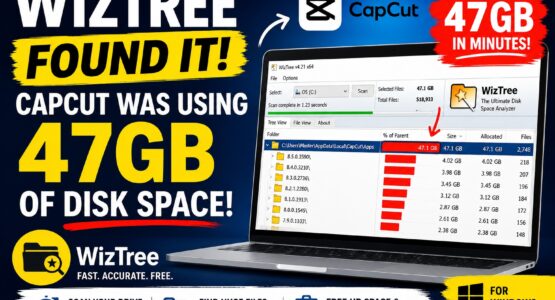
After freeing up around 15GB, my C: drive quickly filled up again while I was working on app development. I knew something wasn’t right, so I decided to investigate using WizTree. Within seconds, I discovered the real culprit: CapCut was using an incredible 47GB of storage.
Most users have no idea this can happen.
What is WizTree?
It’s is a free Windows disk space analyser that scans your hard drive incredibly quickly and shows exactly which folders and files are taking up the most space.
Unlike Windows File Explorer, which can make it difficult to track down large folders, WizTree provides a visual breakdown of your storage, allowing you to identify disk space hogs in seconds.
You can download WizTree from the official website:
If you’ve ever wondered, “Where has all my disk space gone?”, WizTree is one of the best tools available.
Which Version of WizTree Should You Download?
On the download page, you’ll normally see several versions.
Installer Version
The installer is the recommended option for most people.
It installs WizTree like a normal Windows application, creates Start Menu shortcuts, and automatically registers the program with Windows. This is the easiest option if you plan to use WizTree regularly.
Portable Version
The portable version doesn’t need installing.
Simply extract the ZIP file and run it whenever you need it. This version is ideal if you:
- Want to run it from a USB drive
- Prefer not to install additional software
- Need to use it on multiple computers
Functionally, both versions work the same.
WizTree.exe vs WizTree64.exe
If you open the portable version, you’ll usually notice two executable files:
- WizTree.exe
- WizTree64.exe
The difference is simple.
WizTree.exe is the 32-bit version and works on both older and newer versions of Windows.
WizTree64.exe is the native 64-bit version designed for modern Windows PCs. It can access memory more efficiently and generally offers the best performance.
If you’re using Windows 10 or Windows 11 on a modern computer, you’ll almost certainly want to run WizTree64.exe.
The Hidden Reason CapCut Can Consume So Much Storage
This was the biggest surprise.
When I scanned my drive with WizTree, I discovered this folder:
C:\Users\<YourUsername>\AppData\Local\CapCut\Apps
Inside were numerous folders named with version numbers, for example:
- 8.2.x
- 8.3.x
- 8.4.x
- 8.5.x
Each folder was around 2GB in size.
Together, they totalled an astonishing 47GB.
Many users assume that when software updates itself, the old version is automatically removed. In CapCut’s case, that isn’t always true. Older versions may remain on your computer, quietly consuming storage without you ever noticing.
Over months or years of updates, these old versions can build up significantly.
Why Does This Matter?
As your available storage decreases, Windows has less room for temporary files, updates, virtual memory, and application caches.
Eventually you may notice:
- Windows becoming slower
- Programs taking longer to load
- Failed Windows updates
- Problems installing new software
- Warnings that your drive is almost full
The frustrating part is that many people don’t realise the cause isn’t their personal files—it’s old application data left behind after updates.
How to Free Up the Space
Before deleting anything, completely close CapCut.
Next, open:
C:\Users\<YourUsername>\AppData\Local\CapCut\Apps
Sort the folders by Date Modified.
In many cases, you’ll find multiple old versions sitting alongside the latest version.
The safest approach is to keep the newest version and remove the older ones that are no longer needed. If you’re unsure, move the older folders somewhere else temporarily, launch CapCut to confirm everything still works correctly, and then permanently delete them.
This simple check could recover tens of gigabytes of storage.
WizTree Makes Finding Storage Problems Easy
One of the things I like most about WizTree is its speed.
Instead of spending hours guessing which folders might be large, it scans your drive in seconds and immediately highlights the biggest storage users.
It also makes it easy to spot:
- Large Downloads folders
- Temporary files
- Application caches
- Old installers
- Duplicate files
- Forgotten backups
Rather than deleting files at random, you can make informed decisions based on what’s actually consuming your storage.
Final Thoughts
Finding 47GB of unnecessary CapCut files was completely unexpected, but it highlights why regularly checking your storage is a good habit.
Many Windows users unknowingly lose tens of gigabytes to old application versions, caches, and temporary files. Because these files are often hidden inside the AppData folder, they’re easy to overlook.
If your PC is running low on storage and you’re not sure why, install WizTree and scan your drive. You may be surprised at what you discover. A quick scan could reveal forgotten files occupying valuable disk space and help you reclaim storage in just a few minutes.
